How to Block Twitch on Chrome
The fastest way to block Twitch on Chrome is a free extension: install ZalipOff, add twitch.tv to the block list, and choose between a soft nudge and a hard block. One minute, no account, no admin rights. Speed matters here more than with most sites, because a stream has no ending: no last episode, no final video, just a live thing that keeps going until you make it stop. Here is the extension method, the built-in options, and the honest truth about the mobile and console apps.
Method 1: a browser extension (about one minute)
Extensions work at the browser level, so you skip system settings and admin rights entirely. Setup with ZalipOff, a free Chrome extension:
- Install ZalipOff from the Chrome Web Store. No account, no sign-up; it starts working immediately.
- Add twitch.tv to your blocked sites. If clips shared in Discord keep pulling you back in, add clips.twitch.tv as well.
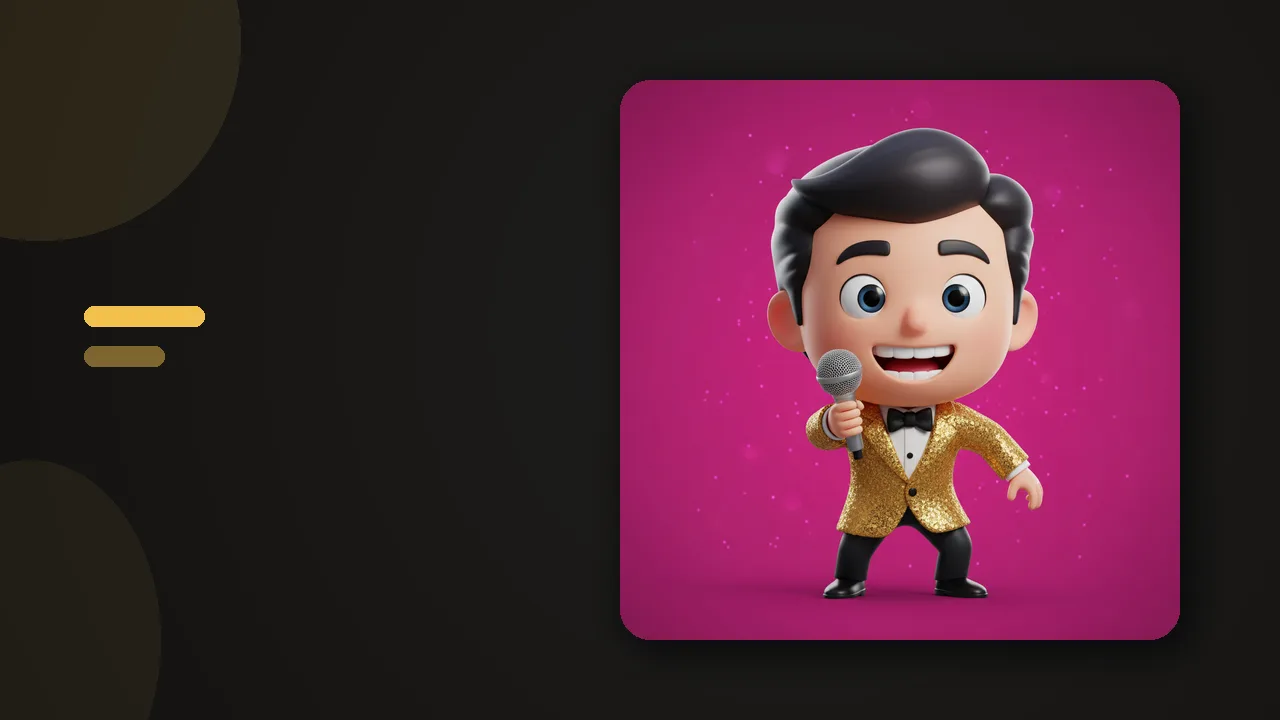
- Pick one of 12 coach characters, from gentle to strict. A 3D coach reacts when you drift instead of showing a cold block page.
- Choose your mode: soft shows a small reminder card in the corner while the stream keeps playing, hard dims the screen with a blocking overlay.
Which mode fits which habit? Soft mode is for the background-stream crowd: people who keep a stream in a second monitor as ambient company and want a periodic tap on the shoulder. Hard mode is for the other pattern, the one where you sat down at 9 pm to watch one match and it is somehow 2 am and you are three raids deep into a category you do not even play. If you are not sure which fits, start soft: the escalation logic means chronic drifting gets a firmer answer either way.

The part that keeps it working is automatic escalation. Ignore the soft reminder and wander back a few times, and ZalipOff stops nudging and starts blocking. You did not have to preconfigure anything or set up schedules; the tool simply matches your behavior. It is completely free, with no site limit and no premium tier, and all data stays local in your browser.
One more practical note: if your streaming habit hops platforms, add YouTube too, since half the streamers you follow probably simulcast or upload highlights there. We have a separate guide for blocking YouTube on Chrome, and the general approach for any site lives in the block any site on Chrome hub.
Close the re-entry ramps too: turn off Twitch email and browser notifications, because every go-live alert is a personal invitation to test your own block. If you follow streamers on other platforms, mute those pings during work hours as well. A block plus a steady stream of just-went-live notifications is a fight the block eventually loses.

Try ZalipOff free: 12 character coaches, soft nudge or hard block, no account needed. Your data never leaves your browser. Add to Chrome.
Method 2: built-in tools
Prefer not to install anything? Three built-in routes exist, each with tradeoffs worth knowing in advance.
The hosts file
You can block Twitch at the operating system level by editing the hosts file. On Windows, open Notepad as administrator, edit C:\Windows\System32\drivers\etc\hosts, and add 127.0.0.1 twitch.tv and 127.0.0.1 www.twitch.tv. On a Mac, do the same in /etc/hosts via Terminal. The site will stop resolving in every browser.
The honest downsides: it needs admin rights, it is all or nothing with no soft option, and undoing it takes thirty seconds of editing the same file. A block you can casually revert during a hype moment is not much of a block.
Router and DNS blocking
Home routers can usually block domains network-wide, and DNS filtering services can do it by category. This covers your laptop, desktop and TV in one move, but it also blocks Twitch for everyone else on the Wi-Fi, and your phone escapes the moment it drops to mobile data.
Parental controls
macOS Screen Time and Windows Family Safety can restrict twitch.tv with time limits. They are workable but awkward for self-management, since you are both the parent and the kid, and you know the passcode.
Method 3: on mobile, consoles and TVs
Plain honesty: ZalipOff is browser-only. It cannot touch the Twitch app on your phone, your PlayStation, your Xbox, or your smart TV. For the phone, use an app timer in iOS Screen Time or Android Digital Wellbeing, or delete the app and keep the mobile site, which is just annoying enough to break the reflex. For consoles and TVs, logging out is surprisingly effective: typing a password with a controller is the kind of friction nobody enjoys pushing through. Most consoles and smart TVs also hide their own screen time and restriction settings inside parental controls; clunky, but real.

What actually works long-term
The Twitch-specific trap is the background stream. It feels harmless, even productive: just some noise while I work. But chat pings, donation alerts and hype moments are engineered to grab attention, so you are not half-watching, you are context-switching dozens of times an hour. The research on why this destroys focus is summarized in why multitasking fails.
The fix that lasts is not banning Twitch forever; it is watching on purpose. Decide when streams happen: lunch, evenings, weekends. Make them a real break with a start and an end instead of an ambient default, something we cover in how to take breaks. Then let a blocker guard the boundary. A tool that only punishes gets uninstalled the first time your favorite streamer goes live mid-afternoon; a coach that nudges first and blocks only when you keep drifting is one you will actually keep.
VODs deserve their own mention. They feel like guilt-free catch-up because they are not live, but three two-hour VODs is still six hours. Treat them like any other show: pick the ones that matter, schedule them, and let the rest go. The fear of missing a moment fades quickly once you notice that the genuinely great clips always find you anyway.
Set the boundary once and let it hold: add ZalipOff to Chrome. Free forever, 12 coaches, no account, nothing leaves your browser.
Frequently asked questions
Can I keep a Twitch stream as background noise while I work?
You can, but be honest about the cost: chat, alerts and hype moments constantly grab attention, so you end up context-switching rather than focusing. A middle path is ZalipOff soft mode, which leaves the stream playing but shows a reminder card so background watching does not silently become foreground watching.
Does blocking twitch.tv also block clips people send me?
Clips hosted on clips.twitch.tv need that domain added separately. Once both are on your list, links from Discord or chat land on your block instead of autoplaying a clip that turns into an hour of live streams.
Will this block the Twitch app on my phone or console?
No. Browser extensions only work in the browser. For phones, use iOS Screen Time or Android Digital Wellbeing app limits; for consoles and TVs, logging out of the app adds enough friction to matter.
Is ZalipOff really free?
Yes, completely. No trial, no site limit, no premium tier, no account. Your data stays local in the browser and nothing is transmitted.