How to Block Websites on Chrome (Any Site, Free)
The fastest way to block websites on Chrome is a free extension: install ZalipOff, add the site to your block list, choose soft or hard mode, and the site is handled in under a minute with no account. If you need blocking that reaches beyond the browser, the hosts file and your router can do it, with more hassle. This hub covers every method, plus dedicated guides for YouTube, TikTok, Instagram, Reddit and other specific sites.
First, a fact that surprises most people: Chrome has no built-in website blocker. There is nothing in chrome://settings that lets you block a site for yourself. That page manages permissions, cookies and notifications, not access. So your realistic options are three: a browser extension (fast and flexible), system-level tools like the hosts file or your router (blunt and fiddly), and phone settings for mobile. Here is how each works and when to pick it.
Method 1: a browser extension (under a minute)
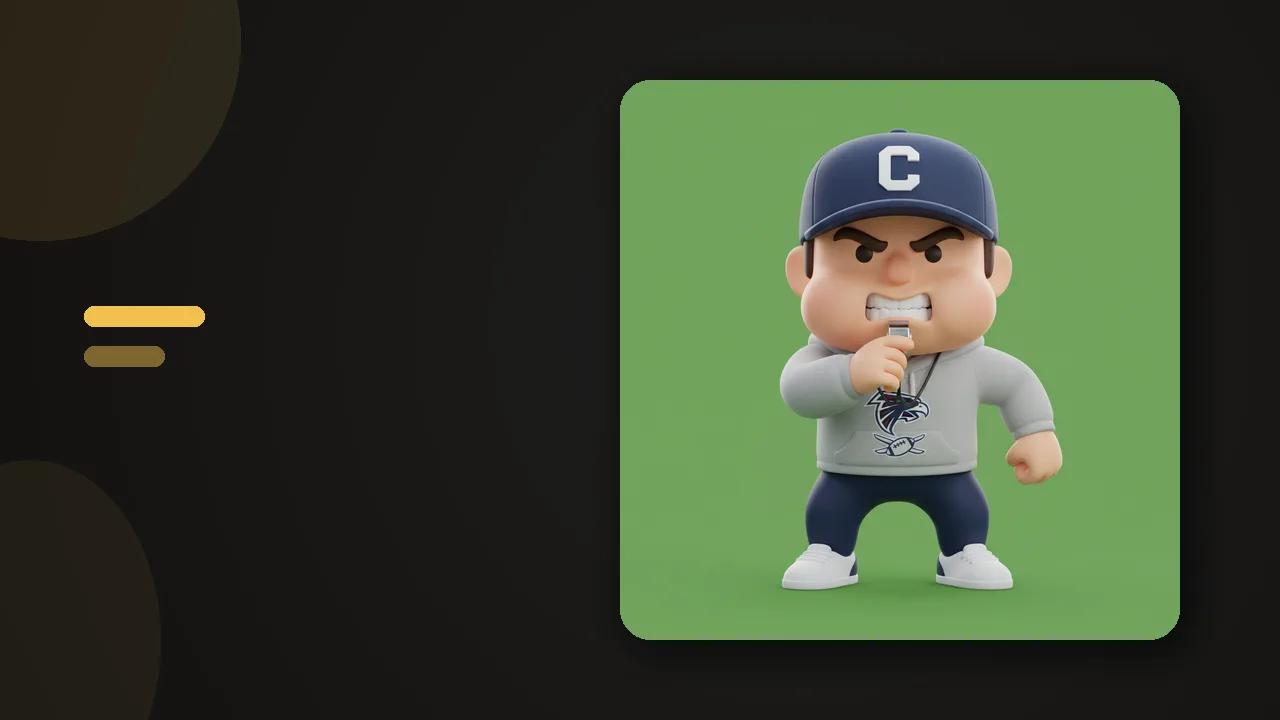
Extensions are the quickest route because they live exactly where the distraction happens. ZalipOff is ours, so judge the honest case for it yourself: it is completely free with no site limit, needs no account or sign-up, keeps all data local in your browser, and instead of a cold block page a 3D coach character reacts when you drift. Twelve characters, from a gentle zen master to a furious drill sergeant, so you can pick the tone that actually gets through to you.
- Install ZalipOff from the Chrome Web Store. Chrome asks for confirmation, click Add extension.
- Open ZalipOff and add the site to the block list: youtube.com, tiktok.com, reddit.com, whatever eats your day.
- Pick a mode. Soft mode shows a small reminder card in the corner, so you can still peek when you genuinely need the site. Hard mode dims the screen with a blocking overlay.
- Pick your coach and get back to work.
If you keep drifting back, ZalipOff escalates automatically: a reminder first, then a block. That sounds like a small feature. It is actually the whole reason people keep the extension installed, and we explain why in the long-term section below.

Other extensions worth knowing: LeechBlock NG is free and powerful if you enjoy configuring schedules in a settings table, and Unhook (rated 4.9) is excellent if YouTube is your only problem. For the full field, see our comparison of the best website blockers in 2026.
Method 2: built-in tools (hosts file, router, parental controls)
These work outside Chrome, which is their strength and their pain. None of them involves Chrome settings, because again, Chrome settings cannot block websites.
The hosts file
Every computer has a text file that maps domain names to addresses. Point a domain at your own machine and it stops loading in every browser and app.
- Windows: edit C:\Windows\System32\drivers\etc\hosts as administrator.
- Mac: edit /etc/hosts with sudo in Terminal.
- Add lines like 127.0.0.1 www.reddit.com and 127.0.0.1 reddit.com, save, flush your DNS cache.
Caveats, honestly: you need admin rights, which rules out most work laptops. Big sites use many subdomains, so you will play whack-a-mole. There is no scheduling, no work-hours mode, and unblocking means editing the file again, which you, the person who blocked it, know exactly how to do.
Your router
Most home routers can block domains for the whole network, usually under access control or parental control settings. Good for family-wide rules and kids' devices. Weak for self-control: your phone just switches to cellular data, and the settings interface was designed by someone who hates you.
Parental controls
Screen Time on macOS and Family Link on ChromeOS can restrict websites system-wide. They genuinely work when someone else holds the passcode. Used solo, they are a lock with the key taped to the door.

Try ZalipOff free: 12 character coaches, soft nudge or hard block, no account needed. Your data never leaves your browser. Add to Chrome.
Method 3: on mobile
Straight answer: ZalipOff is a Chrome extension for desktop. It has no mobile app and does nothing on your phone. What actually helps there is built in already. On iPhone, Screen Time lets you set app limits and block specific websites under Content and Privacy Restrictions. On Android, Digital Wellbeing offers app timers and Focus mode. If the phone is the bigger battle, start with our guide on how to stop scrolling your phone.
Which method fits your situation?
- Work laptop, no admin rights: extension. It installs in user space, asks nothing of IT, and ZalipOff needs no account either.
- Shared family computer or kids: router rules or parental controls, with the passcode held by an adult who is not the one being blocked.
- You want a site dead in every browser: hosts file, if you have admin rights and do not mind editing system files by hand.
- You sometimes need the blocked site for real work: extension with soft mode. Blunt tools cannot tell research from doomscrolling; a reminder card can coexist with a legitimate visit.
- You have already uninstalled three blockers: extension with escalation. The fix is not a taller wall, it is friction that grows gradually instead of provoking a jailbreak.
Guides for specific sites
Blocking youtube.com is not the same job as taming the Shorts shelf, and Reddit needs different handling than TikTok. These guides cover the quirks of each site:
- Block YouTube on Chrome
- Block TikTok on Chrome
- Block Instagram on your computer
- Block Reddit on Chrome
- Block Twitter/X on Chrome
- Block Twitch on Chrome
- Block Pinterest on Chrome
- Remove Shorts from the YouTube homepage
- Disable Instagram Reels on desktop
- Block the TikTok For You page
What actually works long-term

Here is the uncomfortable pattern with every blocker: you installed it, so you can uninstall it. A pure hard wall feels great on day one and gets torn down on day nine, usually during a bad afternoon, usually with a promise to reinstall it later. Psychologists call the underlying pull the forbidden fruit effect: total bans make the banned thing more interesting.
What survives contact with a bad afternoon is graduated friction. A soft reminder first, which respects that sometimes you do need the site. A hard block only when you keep going back. That escalation is exactly how ZalipOff is built, and it is why a nudge from a character you chose lands better than a wall you resent. We break down the psychology in soft block vs hard block, and if you want the broader habit picture, read how to block distracting websites.
Short version: pick the site, pick a coach, let the escalation do the arguing. ZalipOff is free forever, no account, and nothing leaves your browser. Add it to Chrome and block your first site in the next minute.
Frequently asked questions
Can I block websites in Chrome without an extension?
Not inside Chrome itself: chrome://settings has no blocking feature. Without an extension your options are the hosts file (needs admin rights), router-level blocking, or parental controls like Screen Time and Family Link. They work, but they are clunkier and have no scheduling.
Is there a free website blocker with no account?
Yes. ZalipOff is completely free with no site limit, no account and no sign-up, and all data stays local in your browser. LeechBlock NG is another free, no-account option if you prefer a settings-table interface.
Will a blocker work in Incognito mode?
By default Chrome disables extensions in Incognito. Open chrome://extensions, find your blocker, and enable Allow in Incognito. Otherwise Incognito becomes the obvious loophole.
Does ZalipOff work on my phone?
No. ZalipOff is desktop Chrome only, with no mobile app or sync. On iPhone use Screen Time, on Android use Digital Wellbeing to limit sites and apps.
What stops me from just uninstalling the blocker?
Honestly, nothing. That is why hard-only blockers fail: they turn every bad afternoon into an uninstall. Escalation that starts with a soft reminder keeps friction low enough that you never reach for the uninstall button in the first place.