How to Block YouTube on Chrome
The fastest way to block YouTube on Chrome: install the free ZalipOff extension, add youtube.com to the block list, and pick soft mode (a reminder card) or hard mode (a blocking overlay). Takes about a minute, no account needed. Below you will also find system-level methods, what to do on your phone, and how to block only the addictive parts like Shorts while keeping music and lectures.
YouTube is the hardest site to block sensibly, because half your visits are legitimate. You need the tutorial, the lecture, the one song on repeat. Then autoplay hands you a video essay about medieval siege engines and it is 1 a.m. So this guide covers both the full nuke and selective blocking that leaves the useful parts standing.
Method 1: a browser extension
An extension is the right tool here because it can be flexible in ways the hosts file cannot. With ZalipOff:
- Install ZalipOff from the Chrome Web Store and confirm with Add extension.
- Add youtube.com to your block list.
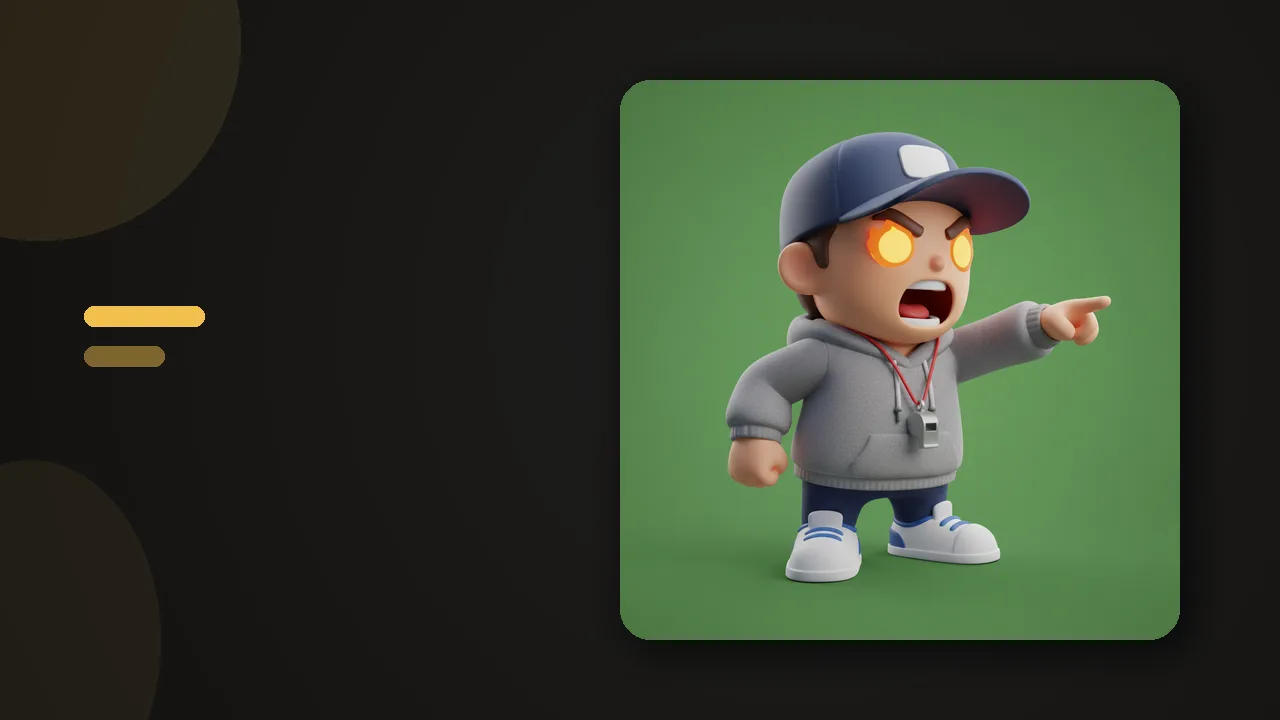
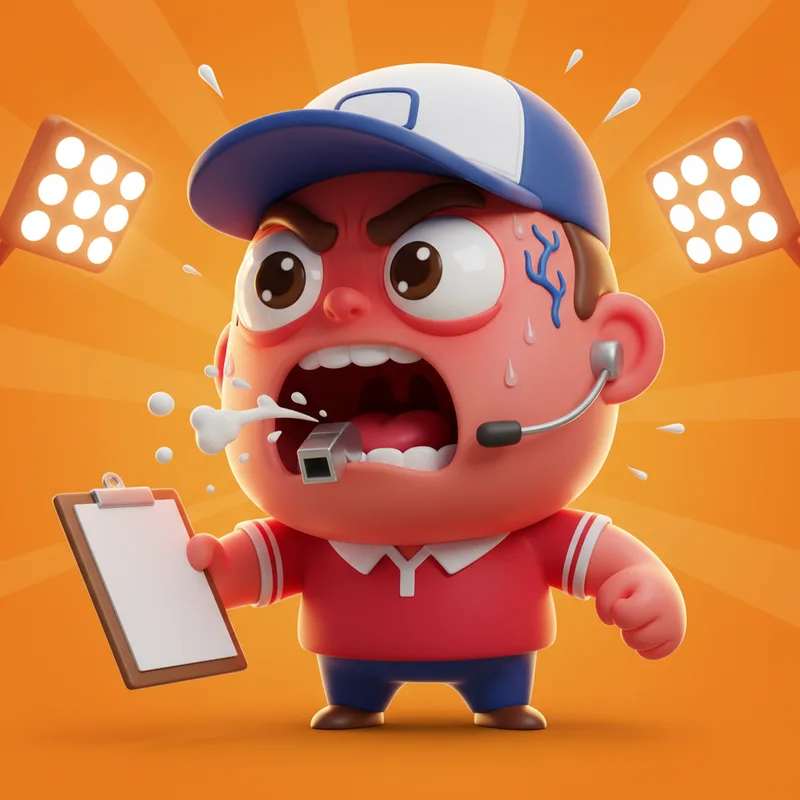
- Choose a mode. For YouTube, soft mode is usually the smart start: a small card appears in the corner with your coach reminding you why you came. You can still watch the tutorial you actually need. Hard mode dims the whole screen with a blocking overlay for days when you trust yourself less.
- Pick one of the 12 coach characters. The sarcastic one is popular with people who claim they were only going to watch one video.
If you keep wandering back, ZalipOff escalates on its own: reminder first, then block. No account, no site limit, free, and everything stays local in your browser.
Honest alternative: if YouTube is your only problem site, Unhook (rated 4.9, free) is genuinely excellent. It does not block YouTube, it defangs it: hides the home feed, recommendations and Shorts so the site becomes a search box. The trade-off is that it does nothing about TikTok, Reddit or anything else. We compare the options in Chrome extensions to block YouTube Shorts.
Selective blocking: keep the good, cut the loop
You rarely need to ban all of YouTube. The compulsive part is usually the feed and Shorts, not the videos you search for on purpose.
- Block Shorts only. The vertical feed is the most slot-machine part of the site. Our guide on removing Shorts from the YouTube homepage covers hiding the shelf and blocking the /shorts/ path.
- Keep YouTube Music. It lives on its own domain, music.youtube.com, so blocking youtube.com can leave your focus playlists untouched.
- Soft mode as a speed bump. A reminder card lets you watch the lecture but makes autopilot browsing feel supervised, which is usually enough.
Small YouTube settings that lower the pull
While you are setting up the block, spend three minutes inside YouTube itself:
- Turn off autoplay. The toggle sits on the player. Autoplay is the single feature most responsible for "how is it midnight."
- Pause watch history. In your Google account settings. The home feed loses its scary accuracy within days and starts recommending things you can actually resist.
- Unsubscribe ruthlessly. Every channel you keep is a future notification and a future thumbnail engineered for you specifically.
- Kill notifications. Both browser notifications and email digests. You will not miss anything that matters; that is what search is for.
None of this blocks anything, but it turns YouTube from a slot machine back into a video library, which makes any block you add ten times easier to respect.
Method 2: built-in tools
There is no setting inside Chrome that blocks YouTube: chrome://settings manages cookies and permissions, not access. System-level options that do exist:
The hosts file. Add these lines to C:\Windows\System32\drivers\etc\hosts (Windows, as administrator) or /etc/hosts (Mac, with sudo):
- 127.0.0.1 youtube.com
- 127.0.0.1 www.youtube.com
- 127.0.0.1 m.youtube.com
This kills YouTube in every browser and app on the computer. Know the costs: you need admin rights, so it is out on most work machines. It also breaks YouTube videos embedded in other sites, including course platforms and documentation, which you may actually need. And it is all or nothing: no schedule, no soft mode, and reverting takes you thirty seconds.
Router blocking. Blocking youtube.com at the router covers every device on your wifi, which is useful for kids' tablets. For yourself, cellular data walks straight around it.
Parental controls. Screen Time on Mac and Family Link on ChromeOS can restrict YouTube system-wide. They work best when another person sets the passcode; self-administered, you know the way out.

Try ZalipOff free: 12 character coaches, soft nudge or hard block, no account needed. Your data never leaves your browser. Add to Chrome.
Method 3: on your phone
Plain truth: ZalipOff is desktop-only. No mobile app, no sync, so your phone needs its own defenses. On iPhone, Screen Time can set a daily limit for the YouTube app and block youtube.com in Safari under Content and Privacy Restrictions. On Android, Digital Wellbeing gives the YouTube app a timer, and YouTube's own settings include a bedtime reminder that is easy to dismiss but better than nothing.

What actually works long-term
The failure mode with YouTube is predictable. A total hard block collides with the first legitimate need, Tuesday's tutorial, and gets disabled. Once disabled, it stays disabled, because reinstalling feels like admitting something. The blockers people keep are the ones that bend without breaking: soft friction for normal days, hard walls for exam week, and automatic escalation in between so the tool notices your third visit this hour even when you pretend not to.
One more honest note: no blocker fixes the underlying pattern by itself. If YouTube fills every empty minute, the empty minutes are the real vacancy, and something will apply for the job. Decide in advance what the replacement is, a book, a walk, an actual break, so the block has something to hand you besides withdrawal.
That is the design logic behind ZalipOff, and the broader argument is in soft block vs hard block. For other sites eating your attention, the full guide to blocking any site on Chrome covers them all.
Ready to close the tab for good? ZalipOff is free forever, no account, nothing leaves your browser. Add it to Chrome and let a coach handle the next "just one video."
Frequently asked questions
Can I block YouTube Shorts but keep regular YouTube?
Yes. Shorts is the most compulsive part of the site and can be handled separately: hide the Shorts shelf, block the /shorts/ path, or use an extension. Our dedicated guide on removing Shorts from the YouTube homepage walks through each option.
Can I keep YouTube Music while blocking YouTube?
Yes. YouTube Music runs on its own domain, music.youtube.com. Block youtube.com and www.youtube.com but leave music.youtube.com alone, and your playlists keep working.
Is Unhook better than ZalipOff for YouTube?
If YouTube is your only problem, honestly, Unhook is excellent: 4.9 rating, free, and it strips the feed and recommendations. ZalipOff makes sense when you also want to block other sites, prefer a coach over a bare interface, or want soft-to-hard escalation.
Will blocking YouTube work in Incognito?
Only if you allow it. Chrome turns extensions off in Incognito by default: open chrome://extensions and enable Allow in Incognito for your blocker, or Incognito becomes the loophole.
Does ZalipOff block YouTube on my phone?
No. ZalipOff works only in desktop Chrome. On iPhone use Screen Time app limits and website restrictions; on Android use Digital Wellbeing timers for the YouTube app.